A usable loop has a job: a shaker that supports the groove, a bass figure that leaves space, or a texture that sits behind speech. Start with that job. Asking for an entire atmosphere when you need one part makes it harder to reject an attractive but overcrowded result.
Suno announced Sounds on January 27, 2026, identifying Pro or Premier access. This guide checks the current Sounds help article on October 14. It calls the feature experimental and warns that loops can contain full arrangements. The examples below are original production briefs, not generated or auditioned results.
Choose the output by how it will be used
| Need | Starting type | Acceptance check |
|---|---|---|
| A single impact or transition accent | One Shot | Clear attack and a complete, useful tail |
| A repeating rhythmic part | Loop | Stable pulse and an unobtrusive repeat boundary |
| An ambient bed | Loop as a starting experiment | No obvious reset or unwanted musical layer |
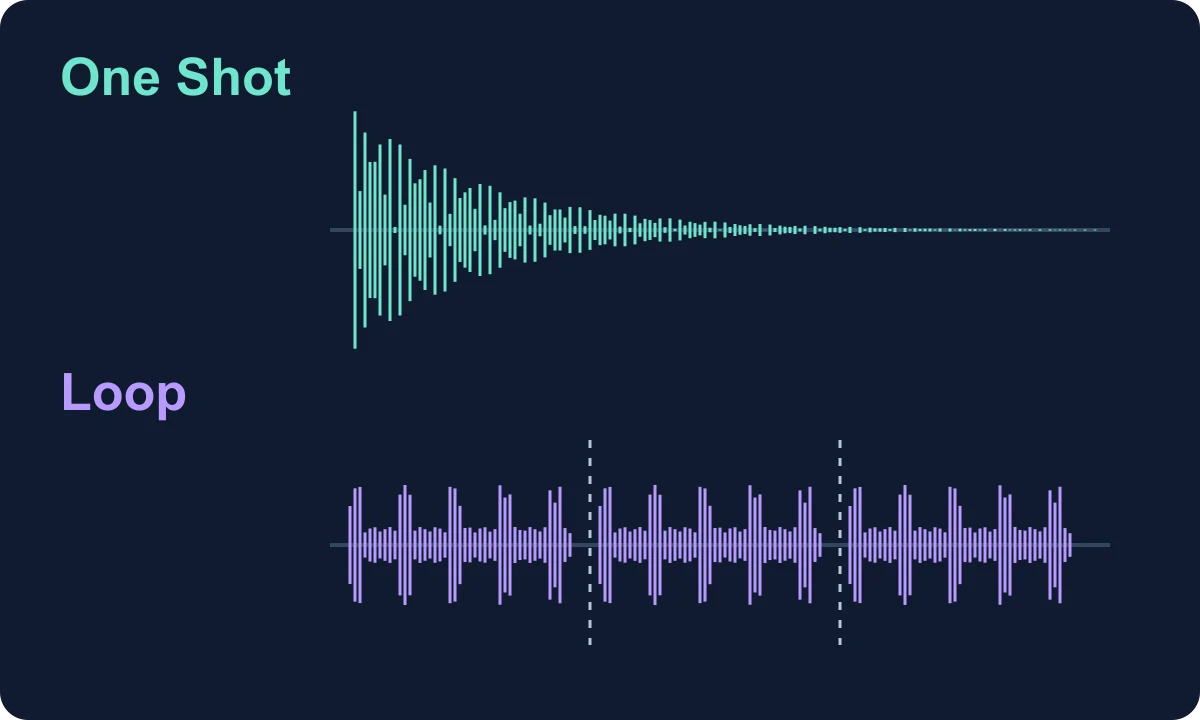
A one-shot is judged as an event; a loop is judged across its return to the beginning. A long reverb tail can work beautifully on an isolated hit and still make a repeating pattern muddy. Choose for the destination rather than deciding from the most impressive solo playback.
Open the current Sounds workflow
The current help article places Simple, Advanced and Sounds at the top of Create. Select Sounds, describe the sound, then use the available Type, BPM and Key settings as appropriate. The January announcement describes an older Custom-dropdown entry; use the current help layout rather than looking endlessly for the older label.
The help article says Create produces two samples. Compare them against the same job. For a musical loop, enter the intended BPM and key when relevant; for an unpitched impact, a key label is not evidence that the result has a musically meaningful pitch.
Do not confuse Sounds, which creates a new sample from a description, with extracting a part from an existing recording. If the starting point is your own voice memo, use the audio-upload workflow. If it is a finished mix whose components you need, see the stem-export guide.
Write one role, then one arrangement constraint
For a practice project at 120 BPM in 4/4, try a sparse percussion layer under a spoken introduction. This is an original prompt to evaluate, not a promise that every word will be followed:
A dry shaker loop with a light rim click on beats two and four.
Steady 4/4 at 120 BPM. Keep the pattern sparse and repeatable.
Percussion only: no bass, chords, melody or voice.
Aim for four bars, with no introductory fill or final crash.
Set the available BPM control to match the request. Four bars is a target, not a documented fixed Sounds length. At steady 120 BPM, four bars of 4/4 span eight seconds; first identify those 16 beats in the output before judging its file duration. Leading silence or a tail may make the file longer.
Listen first for unwanted layers. A pleasant chord progression still fails a percussion-only job. If both candidates are too busy, simplify the sound description and retain the arrangement constraint. Changing instrument, tempo, key and density together makes it difficult to learn what helped.
Test the seam over three repetitions
Place three consecutive copies of the intended loop span in your editor. This is a general editing check, not a claim that Sounds automatically produces a three-copy preview. Hear the middle copy’s entrance and exit with the surrounding material intact.
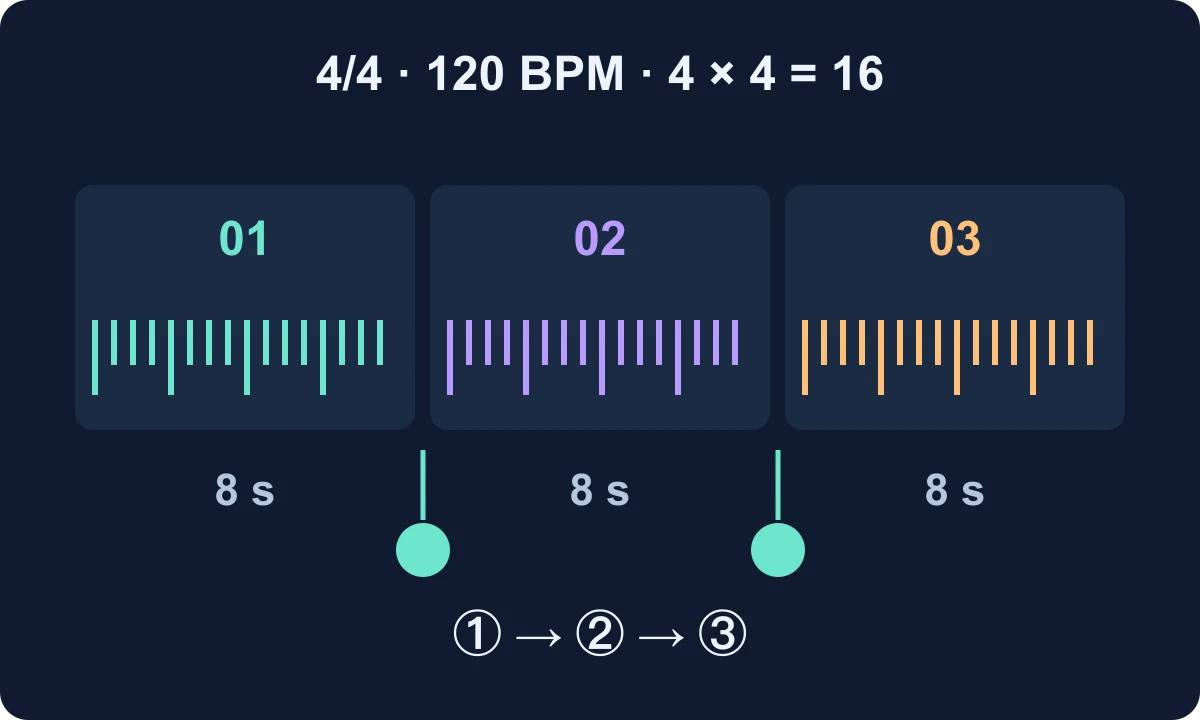
First check the pulse. If the first downbeat is right but later ones drift, inspect duration and tempo. If every beat is shifted by the same amount, inspect the start position. Then listen at both joins for a doubled attack, abrupt silence, cut-off decay or obvious restart of the ambience. The Studio timing and fade tutorial separates these diagnoses.
A click at a cut may call for a small boundary adjustment or short fade. A heavy bass layer that should not exist calls for a different candidate. Do not use a long fade to hide a wrong musical part: it can soften the beat while leaving the arrangement problem untouched.
Save the part with a decision someone can understand
Name a retained file around the task, for example intro-shaker_120bpm_4-4_candidate-a. Add the intended loop range and whether a tail sits outside it. These labels describe your organization and verified target, not guaranteed embedded metadata from Suno.
Keep the source candidate, the edited version and a short note: role; tempo and meter; selected range; seam check; remaining limitation. If the loop only works as a one-time fill, label it that way rather than forcing it into repetition. Finally audition under the actual voice or melody; the right solo sample can still compete with the element it is meant to support.
FAQ
Does selecting Loop guarantee a seamless file?+
Treat it as the requested output type. Listen across repetitions and check the boundary before using it in a project.
Will a percussion prompt always return percussion alone?+
No. The official help article warns that loops may include full arrangements. Check for unwanted bass, chords or vocals.
Can I use four bars as an exact product limit?+
No. Four bars is the target span for this exercise. A prompt is a request; verify the actual duration and musical boundaries.